Dead Click Analysis: Triage Non-Responsive Clicks

On this page
A dead click is a click or tap with no visible page response. To investigate it, inspect the control and surrounding activity, compare similar sessions, and check whether the cause may be delayed feedback, a disabled state, a misleading affordance, or a technical failure.
Use the triage kit below to choose the next check.
Last reviewed: May 2, 2026. This guide treats dead clicks as behavior evidence. A dead click can suggest friction, but it does not prove frustration, intent, root cause, or conversion loss by itself.
What is a dead click?
A dead click is a click or tap where the interface does not produce visible feedback, navigation, state change, or a meaningful response.
The exact detection window depends on the analytics or replay tool. Some tools look for no page activity, no DOM change, no navigation, or no event response after the click. Do not build the product decision around the tool label alone. Build it around the session context.
The useful question is not “did a dead click happen?” The useful question is:
Did a repeated cluster of non-responsive clicks appear near a meaningful user decision, and does the surrounding evidence suggest a specific next action?
That question prevents two common mistakes. It stops teams from ignoring a conversion-critical issue because “it was just one click.” It also stops teams from treating every accidental tap, text-selection click, or decorative-image click as a product bug.
Dead clicks vs rage clicks vs error clicks
These signals are related, but they should not be merged into one conclusion.
| Signal | What it means | What to inspect |
|---|---|---|
| Dead click | A click or tap does not visibly respond | Broken interaction, misleading affordance, missing feedback, blocked overlay, disabled state, or expected detail |
| Rage click | Rapid repeated clicks or taps in one area | Frustration pattern, slow response, validation failure, broken control, or repeated intentional interaction |
| Error click | A click is associated with an error, failed request, validation problem, or JavaScript issue | Console/network errors, failed handlers, form state, API response, and recovery behavior |
| Form abandonment | User starts a form and exits before completing it | Field friction, trust concern, validation clarity, hidden commitment, or device issue |
| Hesitation or quiet exit | User pauses, loops, or leaves without an obvious click problem | Missing context, weak proof, role mismatch, unclear next action, or low motivation |
Use the signal as a review cue. Then inspect the session before and after it.
For the broader review process, use the session replay analysis workflow. For structured evidence documentation, use the session replay evidence review template. If the repeated-click pattern is specific to a demo flow, use rage click diagnosis for demo request pages.
Why dead clicks happen
Dead clicks usually fall into one of nine buckets.
| Category | What it looks like | Typical next check |
|---|---|---|
| Misleading affordance | Static text, image, icon, card, screenshot, badge, or decorative element looks clickable | Does the visual design imply an action that does not exist? |
| Broken interaction | Intended button, link, menu, tab, form control, or widget does not fire | Check handlers, route, state, console, network, and component logic |
| Slow or missing feedback | The action works eventually, but no loading state or confirmation appears quickly enough | Add immediate feedback or make the pending state visible |
| Disabled state that looks active | The control is unavailable but visually invites a click | Clarify disabled styling, preconditions, and copy |
| Error-adjacent click | The click coincides with validation, JavaScript, network, or API failure | Pair replay with error and event context |
| Mobile target issue | Tap target is too small, too close, hidden by keyboard, or blocked by responsive layout | Review mobile sessions and tap spacing |
| Overlay or missed target | Banner, modal, sticky element, invisible layer, or z-index issue intercepts the click | Inspect layout, hit area, overlays, and scroll state |
| Content expectation | User clicks static content because they expect detail, zoom, proof, pricing, or an explanation | Add the missing detail or make the static content look static |
| Noise | Copying text, fidget click, accidental background tap, habit click, or instrumentation artifact | Ignore or monitor unless it repeats near a meaningful outcome |
The category matters because the fix changes. A misleading affordance might need visual cleanup. A broken interaction needs engineering investigation. A content expectation might need a better explanation near the decision point.
When a dead click matters
A dead click matters more when it is close to a business-critical user step.
Prioritize the pattern when:
- it repeats on the same element, region, or step;
- it appears in a meaningful segment such as mobile users, paid traffic, trial users, or pricing visitors;
- it clusters near signup, pricing, demo, onboarding, setup, checkout, or activation;
- users do not recover after the click;
- failed sessions show the pattern more often than successful sessions;
- the pattern is supported by error logs, funnel data, feedback, support notes, or targeted survey responses.
Deprioritize or monitor when:
- it happens once;
- it occurs on low-value background areas;
- successful users show the same behavior without slowing down;
- the click is likely text selection, habit, or exploration;
- the session lacks enough context to tell what the user expected.
The safest interpretation is “this pattern gives us a reason to inspect.” Avoid “this proves why users left.”
Dead Click Triage Kit
Use this kit when a replay tool, heatmap, or team member flags dead clicks and the team needs to decide what to do next.
1. Define the flow and failed outcome
Start with one flow and one outcome.
Examples:
- pricing visitors inspect plan details but do not start trial;
- signup visitors click submit and abandon;
- onboarding users start setup but do not connect data;
- campaign visitors click the CTA and exit the next page;
- trial users open a feature but never complete the activation action.
Dead-click review gets weak when the target is “the website” or “the app.” A tight flow lets you compare similar sessions.
2. Find dead-click clusters
Use heatmaps, clicked-element reports, replay filters, or session tags to find repeated non-responsive clicks.
Look for:
- the same element;
- the same page region;
- the same step in the flow;
- the same device or browser;
- the same source or campaign;
- the same failed outcome.
A cluster is more useful than one interesting clip because it can be compared against successful sessions from the same journey.
3. Watch before and after the click
Watch the thirty seconds before and after the click before naming the problem.

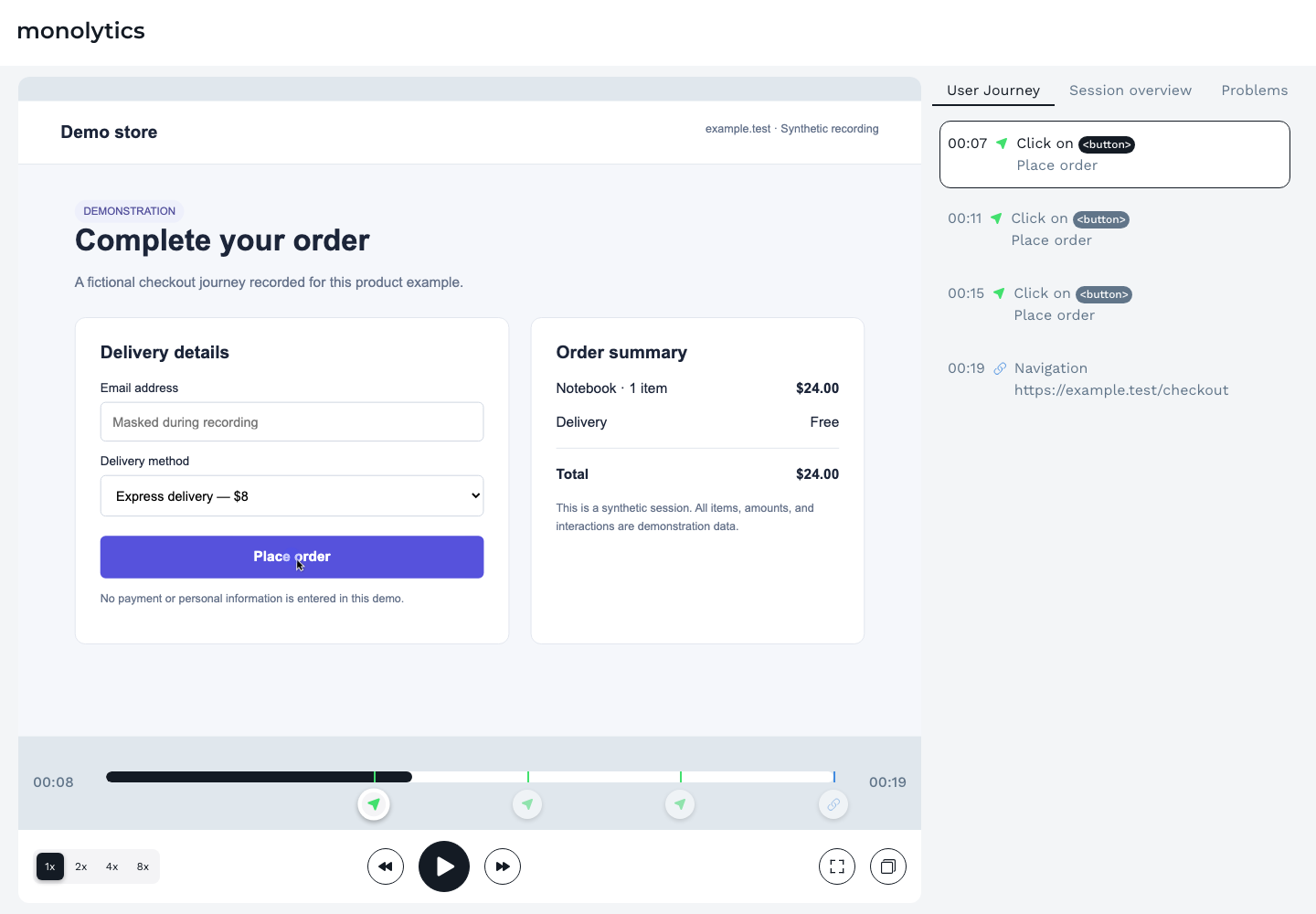
Ask:
- What did the user see before clicking?
- Did the element look interactive?
- Did the page respond slowly, not at all, or outside the visible viewport?
- Did the user retry, move elsewhere, open proof, scroll, or leave?
- Did successful users click the same area and still complete the outcome?
The surrounding behavior often changes the interpretation. A click on a logo might be normal navigation expectation. A click on a static pricing card might signal missing detail. A click on a disabled submit button might be a state-clarity problem.
4. Classify the click
Choose the most likely category from the taxonomy:
- misleading affordance;
- broken interaction;
- slow or missing feedback;
- disabled state that looks active;
- error-adjacent click;
- mobile target issue;
- overlay or missed target;
- content expectation;
- noise.
Keep the label behavior-first. “User expected the card to expand” is stronger than “user was confused.” “Submit click did not show feedback before exit” is stronger than “button was frustrating.”
5. Compare failed and successful sessions
Dead clicks become much more useful when the team can see a contrast.
Compare:
- failed sessions with successful sessions;
- mobile with desktop;
- paid traffic with direct or branded traffic;
- new users with returning users;
- first-time onboarding sessions with later setup sessions;
- one browser or device class against another.
If successful sessions also show the same clicks and users recover, the pattern may be noisy. If failed sessions show the pattern repeatedly and successful sessions do not, the team has a stronger reason to act.
6. Choose the smallest next action
The next action should match the category and confidence.
| If the pattern suggests | Smallest useful next action |
|---|---|
| Misleading affordance | Make the element look static, or make it interactive if the expectation is valid |
| Broken interaction | Debug handler, route, state, API, console, or network behavior |
| Slow feedback | Add loading, disabled, success, or failure feedback near the action |
| Active-looking disabled state | Make prerequisites visible and style the disabled state honestly |
| Mobile target issue | Increase target size, spacing, or keyboard-safe layout |
| Overlay issue | Fix hit area, z-index, modal, banner, sticky element, or viewport behavior |
| Content expectation | Add detail, zoom, proof, tooltip, comparison, or explanation |
| Unclear reason | Ask a targeted question or collect a few more comparable sessions |
| Weak instrumentation | Add or repair event tracking before prioritizing the fix |
For event coverage, use the Monolytics event-tracking guide.
When a dead-click fix is competing for the same sprint as findings from a moderated testing round, run it through the broader UX-fix prioritization framework so it gets ranked against issues from user testing, not just other replay evidence.
7. Log the follow-up signal
Do not stop at “we saw dead clicks.” Write the decision into a row that can be checked later.
| Field | Example |
|---|---|
| Flow | Pricing page to trial start |
| Element or region | Plan-card feature row |
| Segment | Comparison-page visitors on desktop |
| Failed outcome | Did not start trial |
| Observation | Users click a feature row that looks expandable, then scroll to FAQ or leave |
| Category | Content expectation / misleading affordance |
| Confidence | Repeated pattern in failed sessions; not yet supported by feedback |
| Next action | Add expandable detail or make the row clearly static |
| Follow-up signal | Fewer repeat clicks on the row, more CTA clicks after plan review, clearer survey answers |
The follow-up signal makes the work measurable without pretending the dead click alone proved the cause.
Dead click evidence confidence matrix
Use this matrix before prioritizing a fix.
| Confidence level | What it means | What to do |
|---|---|---|
| Anecdote | One session shows a plausible dead-click issue | Treat it as a hypothesis and look for similar sessions |
| Repeated pattern | Several comparable sessions click the same element or region | Tag the pattern and classify the likely category |
| Segmented pattern | The issue concentrates in a device, source, browser, role, plan, or journey segment | Compare with successful sessions from the same segment |
| Outcome-linked pattern | The cluster appears near failed conversion, activation, or recovery steps more than in successful sessions | Prioritize a small fix, instrumentation, or targeted feedback |
| Supported pattern | Replay aligns with funnel, event, error, survey, support, or experiment evidence | Write a stronger product, UX, or engineering brief |
| Refuted or unclear | Replay does not match metrics or successful comparison behavior | Reframe the question, monitor, or collect better evidence |
A single vivid replay can be useful for explaining a problem, but it should not become the whole evidence base.
How to fix dead clicks by category
Make non-interactive elements look non-interactive
If users keep clicking static cards, icons, screenshots, feature rows, or badges, the interface may be promising an interaction. Reduce hover states, remove button-like styling, or make the element truly interactive when the expectation is valid.
Make expected interactive elements clickable
If the element is supposed to respond, debug it. Ask engineering to check event handlers, route state, hydration timing, API responses, validation state, overlays, and browser-specific behavior.
Add immediate feedback for slow actions
A user can interpret a slow action as a dead UI. Show loading, disabled, success, failure, or “processing” feedback near the click, not somewhere the user cannot see.
Clarify disabled states
A disabled button that looks active invites repeated clicks. Make the disabled state visually honest and explain the missing prerequisite close to the control.
Improve mobile targets and layouts
Mobile dead clicks often come from small targets, keyboard overlap, sticky banners, hidden controls, or tight spacing. Review mobile sessions separately before assuming the desktop fix applies.
Add missing detail when users clearly expect it
Sometimes users click because they want proof, zoom, comparison, or detail. If the same static content gets repeated clicks near a high-intent decision, the fix may be more information rather than less interactivity.
Where Monolytics fits the workflow
Use Monolytics Records when you already know the page, event, source, or failed path and need exact sessions around the non-responsive click.
Use Monolytics natural-language Record Search when the team needs repeated failed-session patterns instead of individual clips.
Use the AI session replay analysis workflow when AI-assisted review surfaces a dead-click pattern and the team needs to verify representative sessions before prioritizing a fix.
Use Record Campaigns when the team already knows the high-value route, success event, failed outcome, audience, and capture window.
If the dead-click pattern appears in signup or onboarding, pair the replay evidence with why users abandon signup forms and the signup friction diagnostic checklist. If the behavior is ambiguous, ask a short targeted question rather than guessing.
For product context, see how Monolytics helps teams see UX issues and conversion blockers.
Common mistakes
Treating dead clicks as proof of frustration
A dead click can be a frustration cue. It can also be exploration, text selection, a habit click, or a normal attempt to get more detail. Name the behavior first and the interpretation second.
Combining every click signal into one bucket
Dead clicks, rage clicks, error clicks, form abandonment, hesitation, and quiet exits have different causes and fixes. Keep the taxonomy separate until the evidence says they are connected.
Ignoring successful comparison sessions
If successful users do the same thing and recover, the dead click may not be the blocker. Compare before prioritizing.
Shipping from one clip
One clip can start the investigation. Repetition, segment concentration, outcome proximity, or another evidence layer should support meaningful fixes.
Forgetting privacy controls
Session replay can include sensitive behavior if implementation settings are careless. Review masking, blocking, retention, access, consent, and sensitive-flow exclusions before collecting, sharing, or publishing replay evidence. This article is not legal advice.
FAQ
What is a dead click?
A dead click is an observed click or tap where the page does not visibly respond with feedback, navigation, state change, or another meaningful result.
What is the difference between a dead click and a rage click?
A dead click is about no visible response after a click. A rage click is about rapid repeated clicks or taps in one area. A rage-click pattern can include dead clicks, but it can also happen when a page responds slowly, validates poorly, or creates uncertainty.
What is the difference between a dead click and an error click?
An error click is associated with a technical, validation, network, or JavaScript error. A dead click may have no visible response without an obvious error. The two can overlap, so technical context matters.
Do dead clicks always mean users are frustrated?
No. A dead click is observable behavior, not proof of emotion. Some clicks are exploratory, accidental, copy-related, habitual, or caused by instrumentation noise.
Does one dead click prove a bug?
No. One dead-click session is a hypothesis. Repeated behavior in a comparable segment, especially near a failed outcome, is stronger evidence.
How do you find dead clicks in session replay?
Start with a flow and failed outcome, filter sessions by page or event, look for repeated non-responsive clicks, then watch before and after the click. Use heatmaps or clicked-element reports to locate clusters, and replay to interpret context.
Which dead clicks should be ignored?
Ignore or monitor low-value background clicks, isolated clicks with no repeated pattern, static text-selection clicks, and patterns that appear equally in successful sessions without affecting progress.
How should teams prioritize dead-click fixes?
Prioritize by repetition, segment concentration, proximity to conversion or activation, user recovery, technical severity, and confidence from another evidence layer.
Related workflows
- AI session replay analysis workflow when dead-click clusters are surfaced by AI-assisted replay review and need confidence checks.
- Session replay analysis workflow when the team needs the parent process for choosing sessions and turning replay into a decision.
- Session replay evidence review template when a dead-click pattern needs structured evidence for prioritization.
- How to diagnose rage clicks on demo request pages when repeated clicks cluster around a demo CTA, form, scheduler, or trust element.
- How to see conversion issues using Monolytics Records when you need exact sessions around a known failure point.
- Signup friction diagnostic checklist when dead clicks appear around signup forms, fields, or submit buttons.
Sources used
- FullStory: dead clicks
- Mouseflow: understanding and fixing dead clicks
- Microsoft Clarity: semantic metrics
- Sentry: rage and dead click detection for Session Replay
- Sentry changelog: frustration signals in Session Replay
- Inspectlet: dead clicks
- Momentic: Microsoft Clarity dead-click data
- NerdCow: dead clicks in SaaS
- Amplitude: rage clicks